axe 3.0 has arrived illustration on airport sign

The Deque labs team has been working hard on some updates to the aXe-Core JavaScript testing library for 3.0, including support for Shadow DOM and web components, improve performance, and some new rules: both experimental rules, best practices, and we’ve got more coming after 3.0.

To make sure that you’re ready to hit the ground running with aXe 3.0, we’re going to look at how these API changes work; how they impact our browser extensions and other integrations; as well as our Attest product line, so that way you’ll know what’s in aXe 3.0, how you can hit the ground running, and have an even stronger suite of accessibility testing tools. Let’s get started.

Axe 3.0 & Shadow DOM

To talk about what’s new in aXe 3.0, we need to first talk about what’s new in the aXe-Core JavaScript library. It is the underlying JavaScript that powers our browser extensions and accessibility test APIs.

In aXe-Core 3.0, the biggest change is that it now supports Shadow DOM, which might sound spooky, but it is a standard that’s part of the web component specifications that allows you to encapsulate portions of web pages. You can think of web components as the jQuery plugins of the future, and Shadow DOM is the portion of them that prevents your styles and scripts from leaking inside or out.

Example: aXe-core 3.0 in Shadow DOM

To show you how this works in practice, I’ve got this little ski trip organizer demo app that I made with React JS, and I’ll just go inspect it to see what’s happening in the DOM inspector in Chrome.

If I zoom in a little bit you can see that this trip planner component has this encapsulation inside with an open shadow root. Open–as opposed to closed–shadow root, encapsulates these pages but still allows tools like aXe-Core to step inside of them. So, there are some known accessibility issues in this component that we should be able to catch with aXe-Core 3.0.

aXe-Coconut Extension and Shadow DOM

To show you how this works, I’m going to open up our aXe-Coconut pre-release extension which up until now has been the way to test aXe-Core 3.0 in this pre-release environment. Eventually, these changes will land in our stable axe DevTools for Chrome and Firefox extensions so you can test inside of Shadow DOM with the normal extension.

But for now, we can look at this in aXe-Coconut and see that it does step inside of Shadow DOM; it found that we were missing some form labels and even some color contrast issues inside of this shadow root. From aXe-Coconut, I can go and inspect the node and find that, yep, sure enough, aXe-Core found this issue inside of our open shadow root. No longer will aXe skip over these entire regions of pages if you are indeed using open Shadow DOM.

Filing Bugs in Axe-Coconut

One other cool thing I’ll point out in the new aXe-Coconut extension is this little bug report button. The bug report button allows you to file an issue about an experimental rule or Shadow DOM issue straight from the browser extension.

Unlike our regular Chrome extension that doesn’t have that bug report button, aXe-Coconut is intended to give you an opportunity to file bugs early, before these changes roll out to everyone. You will have Shadow DOM support in our aXe Chrome and Firefox extensions very soon, and they are already in aXe-Core 3.0.

Axe 3.0 in your automated test suite

So far we’ve been focused on the browser extensions and sort of manual process of accessibility testing. However, you can also make use of aXe 3.0 in your automated test suite. To do that, let’s go over to my text editor where I’ve got some integration tests written for our little demo app, built with React.

In the package.json file, I’ve got a script here for integration. It runs the Mocha test framework and then our arbitrary integration/a11y.js file. I’m also pulling in a special version of aXe-WebdriverJS. Now this will become standard in our stable 2.0 release of aXe-WebdriverJS, but until now you’ve been able to use aXe 3.0 in this 2.0.0-alpha.1. That will become mainstream very soon, but for now, I can use this alpha.1 with the aXe-WebdriverJS tool to actually test inside of Shadow DOM with an automated test.

In our integration/a11y.js file, I’m using Selenium Webdriver and aXe-WebdriverJS to run a real browser instance and test for accessibility from the command line. I do a bit of setting up here, and I’ve covered that in other videos so I won’t go too deep into this right now, except to show you these actual tests. The first test says it should find no violations on the home page, it goes and finds an element on that page, and runs this axeBuilder.

How to Run axeBuilder

Just like a normal accessibility test, we expect that it has zero accessibility violations. And then to make sure we’re testing all of the different areas of this application, there is the modal window in this app, so we go and programmatically open the modal window with the enter key, and then we run axeBuilder again to make sure it has no violations. Now, I did write this up intentionally with accessibility violations so we should see a bunch, and they should look like what we saw in aXe-Coconut.

In my terminal, I am going to do npm run integration to run that npm script. It’s going to open a browser in instance in the background, we can see it open once for each test, and if I scroll up, yep, unfortunately, there are some accessibility issues here, but that was the goal. We wanted to see how aXe-WebdriverJS would report these to us.

So, in this app I’m just going to scroll up to the top here, I can see that it is indeed finding those same label issues that we saw in aXe-Coconut. It’s going into this trip planner and telling us that we forgot some labels. So that’s an issue that we could fix. We could uncover more issues by either using the browser extensions, or in our automated tests, and then you can go and fix all of these, try to get it so that you have no accessibility issues.

Summary

In this format, you could prevent accessibility issues from being deployed out to production or maybe fail a build before it gets approved in a pull request. It really depends how your team wants to work, as to which tools you like to use: do you prefer browser extensions or automated tooling, or some combination of both? That’s my M.O., typically. But with aXe 3.0 you can really modernize your workflow so that it’s stepping inside of Shadow DOM and doing it as fast as possible. There’s a lot of edge cases that we’re working on so if you find any issues, you know, false positives or false negatives, definitely let us know, either on GitHub or on Twitter. We would love to hear from you. Thanks so much.

Marcy Sutton

Marcy Sutton

Marcy is a Developer Advocate at Deque Systems. She's also an #axeCore team member, @a11ySea meetup organizer & mountain enthusiast.

Great accessibility doesn’t just happen. 

Once your company begins the process of building a culture of accessibility and a core accessibility team, it’s important that your team members have the tools and environment in place to achieve success. By providing your employees with ongoing education and encouragement to celebrate and create awareness around accessibility, they will own and champion accessibility as part of their job.

Not only will tools and training equip your team for initial success, it will allow your team to have success that is built to last.

Training

Access to accessibility training for all employees encourages continuous development of their expertise and ensures that new employees will have a way to gain basic accessibility knowledge quickly and efficiently.

To create a baseline understanding and awareness of accessibility, consider working with HR and your compliance team to establish a “basic training” course. This can be in the form of in-person or online training. If you can integrate this course into your new employee onboarding process, even better!

Finally, take measures to ensure that champions from each department fully understand the fundamentals of digital accessibility, that they understand their team’s responsibilities and the guidelines specific to their discipline, and that they can effectively communicate this information to their team. 

Awareness

Training may also include hands-on experiences and awareness exercises. For example, employees can learn to use assistive technology by simulating different types of disabilities while using a computer via screen reader software. It’s recommended to have a designated space and equipment (similar to what companies such as Yahoo’s lab and PayPal’s showcase). Not to mention, awareness training can even be done on a tight budget.

It’s important to note that training and assistance only go so far. Ultimately, managers and teams must be held responsible to maintain a culture of accessibility. Creating a culture of accessibility cannot be done with one person or even one team, especially in a large organization.

Resources and Tools

Resources are all about equipping your team for success. Training is a resource in and of itself, especially if you subscribe to an online training portal like Deque University). In addition to online references, the opportunity to learn directly from an expert can be an invaluable resource. This could be in the form of instructor-led training, hiring an embedded consultant to act as an expert-in-residence, or establishing your own team of accessibility experts who can provide help and guidance to other teams and departments anytime.

Accessibility Tools

Another important resource is tools for accessibility testing and remediation. There are lots of free automated accessibility testing tools out there, like our own open source tool aXe, and we’ll provide a short list of free tools to check out at the end of this section. In addition to automated testing tools, you need to provide access to screen readers (also available for free, in some cases) for manual testing. It doesn’t hurt to have some other assistive technologies for testing (like screen magnifiers), but screen readers and keyboard-only manual testing is a great place to start.

You also need to make sure that the tools your teams are using internally have capabilities to fix accessibility issues. If you want your teams to be able to make their own accessible PDFs, for example, they’re going to need a more robust PDF editing tool like Adobe Acrobat Pro. If your working with a Content Management System, you need to make sure your content team can fix accessibility issues that might show up in the templates or pages generated by the CMS and any plugins or widgets. A big part of that is making sure you’ve picked tools that provide a lot of flexibility and access to code that is generating the templates and content.

Finally, if you have specific compliance requirements that need to be met, you’ll need to equip your development and QA teams with more powerful accessibility testing tools. Automated accessibility testing can provide the most value when sites and products and sites are still in the development stage. Our own tools were designed to reflect actual software development practices and to fit into these practices with minimal interruption. WorldSpace Attest is meant to be used by developers as they code and integrates with all modern testing frameworks so your team can run accessibility tests as part of their unit and integration testing. WorldSpace Assure can help your QA or core accessibility team to create clear and consistent accessibility issue reports while they conduct manual accessibility testing.

There are many accessibility “auditing” tools out there – we have our own, called WorldSpace Comply. They’re an older style of accessibility testing tool and while they’re great for keeping an eye on your site for any new issues after your initial accessibility remediation is complete, they’re pretty clunky and the reports can be overwhelming and confusing if you try to use them for your initial accessibility audit. If your team is new to accessibility, the best resource you can provide is a full assessment performed and explained by accessibility experts.

Here’s a short list of some free accessibility tools and resources to check out:

Events and Conferences

An event is a valuable and entertaining way to spread awareness and knowledge about accessibility and is also good for team building and morale.

An accessibility event can be held for a variety of reasons and in a variety of ways. You can host a guest speaker; run a bug bash; or go on a field trip (relating to accessibility of course!) A great way to incorporate team building into an accessibility event is by hosting a quiz or contest where employees are in teams. The winners may be rewarded with branded accessibility swag.

Any feasible time is good to host an event. An event can also be a way to kick off a project. Many folks organize and attend an event on Global Accessibility Awareness Day, which is celebrated on the third Thursday of May.

Events outside your organization are also very beneficial for continuing professional growth. There are many accessibility conferences around the world; in the U.S., popular events include CSUN Assistive Technology Conference, Accessing Higher Ground, and M-Enabling Summit.

Also, check Meetup.com to see if there are any accessibility groups near you; or attend an accessibility “bar camp” such as the Accessibility Toronto Camp and Accessibility Camp Bay Area. Attending events like these are usually lower in cost and will fuel your team to be better at accessibility. In the end, it will be a worthwhile investment.

Final Thoughts

If you’re looking to create a dependable and effective accessibility team, your job doesn’t end after you create a core accessibility team and a culture of accessibility. Training and equipping your team for long-term success is key to creating a successful accessibility program. By investing in your team’s skills, tools, and awareness training, accessibility will be something that every member of the accessibility team will embrace.


Dennis Lembree

Dennis Lembree

Digital accessibility professional specializing in web accessibility, interaction design, and usability.


Let’s learn about Deque’s WorldSpace Attest for Android product. If you’re not familiar with Attest, it’s an automated testing toolkit for HTML, iOS and Android that enables developers to test for accessibility. With Attest for Android, native mobile developers can run automated accessibility tests on their code as part of their regular integration and unit testing processes.  I’d like to spend our time here reviewing the workflow that an Accessibility Subject Matter Expert would go through to utilize this product. In other words, you don’t have access to the source code or development team to follow along. The alternative workflow for this product would be completely automated analysis with integrated unit test while utilizing our analysis library.

Follow along here in my recorded walk-through if you’d like:

Getting Started

Before we begin, download and install the WorldSpace Attest app from the Google Play Store. In my demo, I’m casting real mobile device onto my laptop via Vysor.

Attest for Android Demo Application

The first thing that you’ll open when you get that WorldSpace Attest Package is you’ll see that there’s an application that is attached to the download. This application just serves as demos for the product. For example, if you have a question about what any of our rules are doing or the behaviors that users experience when you see those violations, you can come here and say “hey, is this behavior that is happening here the same as the behavior that they’re checking for in the application?”

Setting up Android for Attest

The next step in this process is to go to your settings. Go to accessibility and find the  Attest for Android Service. This is listed in the same area as other accessibility services like TalkBack. Turn on the service and notice our test will start capturing everything that’s displayed on your screen. This is designed to capture color contrast analysis. If you don’t care about color contrast analysis you can ignore this. Let’s review the control labels example. If you focus on what’s happening in this desktop application here you’ll notice you can click scan for devices. The mobile device will pop up and you should click ok. Now, your desktop client and app are now synced together.

Example: Control Labels Accessibility Violation Workflow

On this device and my desktop client when you click analyze it’s going to analyze whatever’s on the screen of this device, right? So, if you click analyze you’ll see a rule control labels violation. Controls that don’t have their own accessible name must be associated with a visible label. You’ll see some other detailed information to help you figure out why this problem is happening and to identify the control that this is happening on. Notice there is this identifier, but very frequently it is necessary to add our own identifier. The view ID is going to be the resource name or if there is a view ID resource name associated with the view. Class name is obviously the class. There are all the things that are gonna be meaningful for different audiences. The class name is most meaningful to a developer.

This is the information that you will want to report back to your developers. For example, “the switch with this text at this position is having this issue.” You can even highlight it and capture this as a screenshot to report that back to your developer. Right at the bottom, you’ll notice the app says Android dot switch elements have saved information and no name and must have an associated visible label.

How To Use Attest for Android to Analyze On Any Third Party Application

It is important to note that you do not have to do the analysis on our demo application. This works for any third party app and this is why Attest for Android is such a powerful product. For example, you can analyze the Talkback controls. Attest for Android can run an analysis on this system level view. So, if you analyze Talkback’s controls you’ll notice these accessibility violations.

Notice, highlighting is still on so you can highlight these views as you go over them. Here you may view this control labels view, you’ll find that this off switch is not associated with the fact that it’s turning Talk Back off. Furthermore, the color contrast analysis doesn’t pass. Finally, the image view fails, this image has no information associated with it. One of the fixes for this might be to add a content description, but another might just be to hide this view from the assistive technology layer, similar to doing presentational in ARIA on a website. In summary, this is how Subject Matter Experts can utilize Attest for Android in their accessibility testing process. If you have any questions about the product or you would like to see Attest for Android in action, contact us for a demo!

Chris McMeeking

Chris McMeeking

Chris McMeeking is a software engineer and architect at Deque Systems, leading development efforts on Deque’s native mobile accessibility analysis products. His journey in accessibility began through a project at the University of Michigan, The ASK Scanning Keyboard. This application won multiple awards including the $100,000 Intel Innovator’s Award, runner up at the Mobile World Congress, and the Student of Da Vinci award from the Multiple Sclerosis foundation. Chris is the lead developer behind the Android Analyzer, and an active member of the task force developing these new accessibility mobile standards.

illustrations of ux design and color contrast on a mobile phone

Color contrast is a hot topic in the area of accessibility testing. And often overlooked, are accessibility color contrast best practices specific to mobile web. Let’s start by diving into the web content accessibility guidelines, also known as WCAG, and the success criterion related to contrast minimum. We will also dive into things web designers should keep in mind when designing and review which tools they can use to analyze the color contrast of their designs.

Follow along here in my recorded walk-through if you’d like:

WCAG 2.0 and Color Contrast

In WCAG 2.0, the Web Content Accessibility Guidelines from the W3C, the AA success criterion that related to color contrast is 1.4.3. This SC reads “contrast minimum, the visual presentation of text and images of text has a contrast ratio of at least 4.5 to 1 except for the following”:

  • Large Text: Large-scale text and images of large-scale text have a contrast ratio of at least 3 to 1;
  • Incidental: if the text or images of text are part of an inactive user interface component that is pure decoration, that is not visible to anyone, or that are part of a picture that contains significant other visual content, they have no contrast requirement.
  • Logotypes: text that is part of a logo or brand name has no minimum contrast requirement.

Let’s review large text, which could refer to 18 point or 14 point bold, or a font size that would yield equivalent. Be sure to note that the point scale was for print back in the day. Now, we’re dealing with the web and designers must look at scale in terms of pixels, percentages, and EMs. In summary, 18 point and 14 point sizes do not equate to 18 pixels and 14 pixels. Pixel size is even more relevant when designing for mobile. The environment plays more of a role, for example, there could be the different lightings. You could go to a restaurant with dim lighting or outdoors, with sun and brightness.

Automated Tools for Analyzing Color Contrast

One way to find color contrast ratio is through automated tools. For example, Deque’s aXe tool does a very good job analyzing what’s termed as hex code. Any automated tool that works well for you will likely do a really good job of analyzing hex code. One challenge of automated tools occurs when there is background color and a foreground color, but there is an image in between. That image could be a decorative image or it could be a gradient. Images of text also pose a challenge for automated tools. In this case, one should rely on an eyedropper tool.To use aXe, right-click inspect element to analyze the page. The report may say elements do or do not have sufficient contrast.

Designers: Things to Note

One thing to note, if it’s 18 point or 14 point bold, the contrast ratio must be only 3 to 1. In any other situation, the contrast ratio must be a minimum of 4.5 to 1. It is also important to note that designers may change the opacity of the text. In that case, the hex code may be one color but the opacity may have changed, making the color appear to be a lighter color. Furthermore, text and images should be analyzed with an eyedropper tool to analyze the pixel of the text as the foreground and the image as the background. Once you click the pixel you want to analyze, it will copy the hex code to your clipboard.

Types of Tools to Use

WebAIM is one website that allows you copy and paste hex codes to analyze the color contrast ratio. Tanaguru is another great contrast tool. This tool allows you to manipulate the two colors you are checking and adjust the maximum ratio. It is often the case that designers will not know how to fix failing color contrast, and a lot of times the colors that they’re using are branded type colors. In that case, the best thing the subject matter experts will say that it fails, but in the end branded color is an exception. This tool will let them use the color they prefer and manipulate it to get as close to 4.5 as possible.

Recap: Mobile is Dependant on the Environment

It is important to keep in mind too with mobile and the way mobile screens work there’s a whole other realm of text sizing. Be aware of those type things. For example, different viewports and different mobile devices have font weight issues that are relevant to accessibility. Text resizing is another factor that plays into color contrast and readability. This video is a brief overview of how designers can fix color contrast issues and which tools they can use. I also touched on a few things designers should look out for when designing for mobile web interfaces. Below are a few helpful links to help you in your future testing and design:

Feel free to leave your comments at the bottom, ask questions, I’d love to hear them.

CB Averitt

CB Averitt

CB Averitt is a Principal Consultant with Deque Systems. He has been in web development for over 17 years and has experience with front-end and back-end development as well as design and user experience. He has completed hundreds of assessments and remediations in numerous technologies. He has conducted many at major accessibility conferences such as CSUN’s “Annual International Technology and Persons with Disabilities Conference” as well as Knowbility’s “John Slatin AccessU.” CB is a scuba instructor and a drummer, but not usually at the same time. CB has completed hundreds of assessments and remediations in numerous technologies such as web, PDF, and mobile. He has performed numerous presentations across the State of South Carolina. He has presented at major accessibility conferences such as CSUN’s “Annual International Technology and Persons with Disabilities Conference” as well as Knowbility’s “John Slatin AccessU”. CB has been a volunteer with The South Carolina Assistive Technology Advisory Committee (SC ATAC) for over 9 years.

Illustration of mobile device nested in a book

Hi, everyone! I’m back to talk more about WCAG 2.1 and its latest December 7th working draft. Our focus today will be on the ten new success criterion related to accessibility for mobile devices. In our previous sessions, we’ve gone in detail on low vision and cognitive, but now it’s time to dive into the mobile success criteria.

Feel free to follow along with the video below:

Success Criterion 2.4.11: Character Key Shortcuts

The first criterion is the character key shortcuts, which is proposed at level single-A. If this feature isn’t done correctly and a person is trying to use speech to text, then people using speech to text will trigger something they did not mean to. The persona quote for this is “oh no, computer, that’s not what I mean you to do!” The specific SC text at this point in time reads, “if a keyboard shortcut consists entirely of one or more character keys, is implemented in content, then a mechanism is available to turn it off or remap it to a shortcut that can be used with at least one non-character key.” This SC does not apply if the keyboard shortcut for a user interface component is only active when that component has focus. In general, this criterion’s intention is to make it possible for people that use speech to text on their mobile devices to do it without triggering things by mistake.

Success Criterion 2.4.12: Label in Name

The second success criterion also relates to speech to text. It’s called label in name, a requirement at single-A in the proposal. Imagine you’re talking to your computer, which is very common these days, and you’re trying to submit a form. However, you don’t know what the computer wants you to call that submit button. The persona quote for this is “computer, submit the form, computer, curse word. Why aren’t you doing what I said? Why aren’t you doing what I want?” That’s because we don’t have any requirements in WCAG 2.0 to cover how one would verbally tell the computer to do something. The requirement for label in name is “for user interface components with labels that include text or images of text, the name contains the text presented.”  We’ll know the name because we can see it on screen if we are sited, or a person using a screen reader could hear it because that label would match.

Success Criterion 2.5.1: Pointer Gestures

The next SC is called pointer gestures. The persona quote for this one is “you expect me to do that complex hand gesture? Are you kidding me? What is this, the finger Olympics?” Because while it may be simple for some of us to make certain hand gestures on our mobile devices or any touchscreen device, for people with a motor disability, that might be impossible for them to achieve. So this new pointer gestures SC recommended in WCAG 2.1 is about making sure that pointer gestures are possible for everyone to achieve. The specific SC text for pointer gestures is “all functionality which uses multi-point or path based gestures for operation can be operated with a single pointer. Unless that multi-point or path based gesture is essential.” This is a very important SC filling a gap in WCAG 2.1.

Success Criterion 2.5.2: Pointer Cancellation

This next success criterion also refers to pointers. Pointer cancellation is a proposed single level A. Imagine that you are working with your mobile device and maybe you have a motor disability, maybe you don’t, and all of a sudden you were just trying to do something and you accidentally submitted something. You were just trying to move around or investigate something on the screen, but you accidentally submitted something. Pointer cancellation intends to correct situations like these. The persona quote for this one is “holy curse word, I didn’t mean to just do that.” The SC text for this particular one is “for functionality which can be operated using a single pointer, at least one of the following is true. That it doesn’t happen on a down event, that there’s a way to undo it, and that if you pull up it will reverse it, or there is an essential exception.” This criterion will be very useful for all of us.

Success Criterion 2.5.3: Target Size

This next one is called target size, it relates to mobile devices and it is coming in at AA recommended. Have you ever tried to use your mobile device and you’re trying to tap on one thing, but it’s so close to another that you hit the other thing by mistake? That’s because sometimes the icons that are active on the screen are so small you really can’t get your finger on it, or it’s very difficult to get your finger on just that one thing. The persona quote on this one is “what the heck? How am I supposed to touch something that small? Who do you think I am? Ant-man? My fingers are this big.” The requirements for this success criterions is “the size of the target for pointer inputs is at least 44 by 22 CSS pixels, except when there’s an equivalent.” In other words, there is another way to do it somewhere else on the screen that’s larger or it was provided by the user agent. This will be one SC that will be appreciated by all of us as we use our mobile devices.  It will require that one can actually touch an element with their finger and trigger what they intended to trigger.

Success Criterion 2.5.4: Target Size Enhanced

Target size, the success criterion above, has an AAA version of itself which is called target size enhanced. Basically, this is really the same concept, but instead of the size of the target for pointer inputs being at 22 by 44 CSS pixels, wouldn’t it be awesome if it was 44 by 44 CSS pixels? In summary, this requirement raises the 44 dimension in both directions. Anything that you’re seeing as an AAA is a best practice.

Success Criterion 2.5.5: Concurrent Input Mechanisms

The next SC is called concurrent input mechanisms and it is coming in at AAA. This SC relates to when you’re using a mobile device or using a laptop, perhaps you want to switch between input devices. In other words, you want to go from touch screen to voice or you want to add a keyboard in the middle of a workflow. Concurrent input mechanism aims to fix this problem. The persona quote for this SC is, “please let me switch between input devices as I need to.” The specific SC text for concurrent input mechanisms,  is “web content does not restrict the use of input modalities available on a platform except where the restriction is essential, required to ensure the security of the content, or required to respect user settings.” Even coming in at AAA, this is something that we should pay attention to when we care about the usability of our sites as it is a wonderful best practice.

Success Criterion 2.6.1: Motion Actuation

The next SC is motion actuation and it is coming in at a single level A. This has been a complicated one to get the wording right. This SC requires that the user does not have to tilt or shake the device. This SC is targeted towards augmented reality and virtual reality. Making sure that as we evolve into those spaces that they’re fully accessible to all people. The persona quote is, “please don’t make me tilt or shake. I may need to perform the action in some other way. Through a keyboard, through speech. Give me some other options.” The specific SC text for this is “functionality which can be operated by device motion or user motion, can be operated by user interface components, and can be disabled to prevent accidental activation, except when it’s accessibility supported or it’s essential.” In this day and age, it is important to make sure that we can prevent accidental activation via tilt or shake or make it possible for somebody to activate these potential features.

Success Criterion 2.6.2: Orientation

The next one is called orientation and it’s coming in at a double-A requirement. It is so important to not force a person to use their device in a particular orientation. Whether it’s portrait, landscape, etc. The persona quote for this SC is, “don’t force me to rotate my mobile device.” Why is this important? Imagine you are a person who has a motor disability, that may be in a wheelchair which has a very valuable, useful mobile device attached to their wheelchair. This device is attached to one orientation and it cannot move it. The SC text for orientation is “content does not restrict its view and operation to a single display orientation, such as portrait or landscape unless a specific display orientation is essential.” If you have a really good reason for why you require a device to be portrait or landscape, don’t worry, you’re going to meet the essential exception. However, please do not restrict this feature otherwise.

Success Criterion 3.2.6: Status Changes

The last SC for mobile is called status changes and it’s proposed to be at AA. My persona quote is simply, “I can’t tell if anything has happened.” If you’re a screen reader user, and something has changed on the screen, sometimes it’s hard to know that. Sometimes the screen reader hasn’t been given that extra piece of information that a person that can see the screen saw. For example, if there is a pop-up message that appears on the screen. Screen reader users and persons with a cognitive disability may not have been aware of that particular thing.  Even someone without a disability may have missed it because it was just hard to see. But in the case of people with visual disabilities or cognitive disabilities, it’s a major barrier.

The SC text for this particular one is, “in content implemented using markup languages, status messages can be programmatically determined through role or properties such that they can be presented to the user by assisted technology without receiving focus.” I think that this will be another one to discuss in greater detail later because many people may already be calling this as a failure in WCAG 2.0 where it is not a failure of the normative language, unfortunately of WCAG 2.0. It is certainly within the spirit of WCAG 2.0, but WCAG 2.1 is meant to fill that gap and make sure that we can call it a failure in WCAG 2.1.

Conclusion

We’ve discussed low vision, cognitive, and mobile success criterion. Remember, there are a total of 20 new proposals on the table. The WCAG working group is looking forward to a late January target date, where we may actually see a candidate recommendation, which is a more formal version of WCAG 2.1. Stay tuned for more information! We’re also looking forward to introducing you in more detail to Silver, which is the big update that’s further out on the accessibility guidelines. Thanks so much for coming along on this journey.

Glenda Sims

Glenda Sims

Glenda Sims is the Chief Information Accessibility Officer at Deque, where she shares her expertise and passion for the open web with government organizations, educational institutions, and companies ranging in size from small businesses to large enterprise organizations. Glenda is an advisor and co-founder of AIR-University (Accessibility Internet Rally) and AccessU. She serves as an accessibility consultant, judge, and trainer for Knowbility, an organization whose mission is to support the independence of people with disabilities by promoting the availability of barrier-free IT. In 2010 Glenda co-authored the book InterACT with Web Standards: A holistic approach to Web Design.

AI robot thinking about accessibility related items

Artificial intelligence (AI) is all the rage right now. Chances are your news feeds and social media timelines are filled with articles predicting how AI will change the way we will interact with the world around us. Everything from the way we consume content, conduct business, interact with our peers, transport ourselves, and earn a living is going to be affected by AI-related innovations. The revolution has already begun.

While the technology is still imperfect, significant milestones have been reached in the past 18 months. Milestones that show without the shadow of a doubt that AI can improve the lives of people with disabilities. This article will give you a prospective sense of where we’re headed with the technology. And what this means for accessibility and inclusion of people with disabilities in the digital space.

Neural networks and machine learning

Artificial intelligence often seems like it’s happening in a black box. But its foundations can be explained with relative ease. Exposure to massive amounts of data is at the core of all the magic. In a nutshell, AI cannot happen without lots and lots of data. And then a lot of computational power to process the wealth of information is exposed to. This is how artificial intelligence develops new understandings. How the magic (let’s call it machine learning) happens.

Machine Learning can be summarized as the practice of using algorithms to parse data, learn from this data, and then make determinations or predictions through complex neural networks. The connections AI systems make as they are exposed to data results in patterns the technology can recognize. These patterns lead to new possibilities, such as accomplishing tasks that were impossible for the machine until then: recognizing a familiar face in a crowd, identify objects around us, interpreting information in real time, etc.

Neural networks are at the core of a machine’s ability to learn. Think of it as the human brain: information comes in through our senses, and it gets processed. Associations are made, based on preexisting knowledge. New knowledge emerges as a result. A similar process leads to new understandings for machines. The associations’ computers can make through AI are the key to developing the future of digital inclusion.

Building blocks of artificial intelligence

As neural networks build themselves, and as machines learn from the resulting assembled data points, it becomes possible to build blocks of AI that serve very specific, and somewhat “simple” purposes or tasks. Fueled by users needs, and with a little bit of creativity, these building blocks can be assembled to create more complex services that can then improve our lives, do tasks on our behalf. Generally speaking, simplifying some of the things humans need to do on a daily basis.

Let’s focus on five such building blocks, and see how they already contribute to making the experience of people online more accessible. Some of these blocks relate to overcoming a disability, while others address broader human challenges.

  • Automated image recognition,
  • Automated facial recognition,
  • Automated lip-reading recognition,
  • Automated text summarization,
  • Real-time, automated translations.

And to think we’ve only scratched the surface at this point. Damn.

1. Image recognition to fix alt text issues?

Every day, people are uploading over 2 billion pictures on Facebook, Instagram, Messenger and WhatsApp. Imagine how going through your own timeline without any images would feel like. That was the reality for millions of people with visual disabilities until Facebook decided to do something about it. In early 2016, the social media giant released its groundbreaking automatic alternative text feature. It dynamically describes images to blind and visually impaired people. The feature makes it possible for Facebook’s platform to recognize the various components making up an image. Powered by machine learning and neural networks, it can describe each one with jaw-dropping accuracy.

Before, alt text for images posted on your timeline only mentioned the name of whoever posted the picture. Today, images posted on your timeline are described based on each element that can be recognized in them through AI. A picture of three friends enjoying a canoe ride on a sunny day might be described as 3 people, smiling, a body of water, blue sky, outdoors. Granted, this is not as rich and compelling as human written alt text could be. But it’s already an amazing improvement for anyone who can’t see the images. And to think Facebook has only been doing this for about 18 months!

Give it another 5 to 7 years, and image recognition AI will become so accurate, that the mere thought of writing up alt text for images will seem pointless. As pointless as using layout tables instead of CSS feels to some of us today.

2. Facial recognition, as the long-awaited CAPTCHA killer?

As Apple implemented facial recognition as the new way to unlock the next generation of iPhones, Microsoft has been hard at work implementing Windows Hello. Both technologies allow you to log in to your computer using only face recognition. The end goal? Eradicating the need for passwords, which we know most humans are pretty terrible at managing. And data from Apple shows that it works pretty well so far. While the error ratio for Touch ID on iOS was about 1 in 50,000, Apple claims that with facial recognition, they are already bringing that ratio down to 1 in a million. Talk about an improvement!

Yes, facial recognition raises significant security and privacy concerns. But it also addresses many of the challenges related to authenticating online. Through exposure to data – in this case, multiple photos of one’s face, from multiple angles – building blocks of AI learn to make assumptions about who’s in front of the camera. As a result, they end up being able to recognize and authenticate a person in various contexts.

The replacement of CAPTCHA images is one area in which people with disabilities might benefit the most from facial recognitionOnce the system recognizes a person interacting with it as a human through the camera lens, the need to weed out bots should be a thing of the past. AI-powered facial recognition might be the CAPTCHA killer we’ve all been waiting for.

3. Lip-reading recognition to improve video captions?

Did you know that AI is already beating the world’s top lip-reading experts by a ratio of 4 to 1? Again, through massive exposure to data, building blocks of AI have learned to recognize patterns and mouth shapes over time. These systems can now interpret what people are saying.

The Google DeepMind project ran research on over 100 000 natural sentences, taken from videos from the BBC. These videos had a wide range of languages, speech rates, accents, variations in lighting and head positionsResearchers had some of the world’s top experts try to interpret what people on screen were sayingThey then ran the same collection of videos against the neural networks of Google DeepMind. The results were astonishing. While the best experts interpreted about 12.4% of the content, AI successfully interpreted 46.8%. Enough to put any expert to shame!

Automated lip-reading also raises significant privacy concerns. What if any camera can pick up close to 50% of what someone is saying in a public space? Still, the technology yields amazing potential to help people with hearing disabilities as they’re trying to consume online video content. Give Google DeepMind and other similar building blocks of AI a few years to get better at lip-reading. As the quality and relevancy of automated captions improve, we’ll start seeing dramatic improvements in the accuracy of these online services.

4. Automated text summarization to help with learning disabilities?

AI is useful to help bring down barriers for people who have visual or auditory disabilities. But people with cognitive impairments can benefit, too! Salesforce, among others, has been working on an abstractive summarization algorithm. The algorithm uses machine learning to produce shorter text abstracts. While still in its infancy, it is both coherent and accurate. The human language is one of the most complex aspects of human intelligence to break down for machinesThis building block holds great promises for people who have learning disabilities such as dyslexia, and people with attention deficit disorders, memory issues, or low literacy skill levels.

In a few years, Salesforce made impressive progress with automated summarization. They are now leveraging AI to move from an extractive model to an abstractive one. Extractive models draw from pre-existing words in the text to create a summary. This makes the model quite rigid. With an abstractive model, computers have more options. They can introduce new related words and synonyms, as long as the system understands the context enough to introduce the right words to summarize the textThis is another area where massive exposure to data allows AI to make better-educated guesses. These guesses then lead to success, relevancy, and accuracy.

In today’s world, with so much exposure to information, keeping up with the data is a huge challenge. Processing relevant information while weeding out the rest is has become one of the biggest challenges of the 21st century. We all have to read more and more to keep up-to-date with our jobs, the news, and social media. This is an even bigger challenge for people with cognitive disabilities, people who have low literacy skills, or people coming from a different cultureLet’s not hold our breaths on abstractive summarization yet, but this may be our best hopes of finding a way out of the cognitive overload mess we’re in.

5. Real-time translation as the fabled Babelfish?

Diversity of languages and cultures might be one of mankind’s richest aspects. It is also one that causes insurmountable problems when it comes to communicating with people from all over the worldFor as long as humans can remember, people have dreamed of building machines that would allow people to communicate without language barriers. Until now.

We’ve all grown familiar with services such as Google Translate. Most of us often made fun of how inaccurate the resulting translations often were. Especially in various languages that are less common and thus, not represented as wellIn November of 2016, Google launched its Neural Machine Translation (GNMT) system, which lowered error rates by up to 85%. Gone are the days where the service would translate on a word-by-word basis. Now, thanks to GNMT, translations are globally operated. Sentences per sentences, ideas per ideas. The more AI is exposed to a language, the more it learns about it, and the more accurate translations become.

Earlier this year, Google released PixelBuds. These earbuds work with the latest release of their phone. These can now translate what you hear, in real time, in up to 40 different languages. This is just the beginning. From the perspective of accessibility and bringing down barriers, this is incredible. We’re so close to the Babelfish (that small, yellow, leech-like alien from The Hitchhiker’s Guide to the Galaxy), that we can almost touch it.

And this is only the beginning

These building blocks are only a few of the innovations that have emerged, thanks to artificial intelligence. It’s the tip of the AI iceberg. The next few years will guarantee a lot more to come. Such innovations are already finding their way into the assistive technologies. They already contribute to bridging the gaps experienced by people with disabilities. As creative people connect those building blocks, we see products, applications, and services that are changing people’s lives for the better. These are exciting times.

Self-driving cars, environment recognition applications, brain-implanted computer interfaces, etc. Such ideas were dismissed as science fiction a few years ago. There’s a perfect AI storm coming. It will better the lives of everyone, but especially the lives of people with disabilities.

As someone who lives and breathes digital inclusion, I can’t wait to see what the future holds. I plan on keeping track of these things. If you are too, we should follow one another on Twitter, so we can watch it unfold together. Give me a shout at @dboudreau.
Denis Boudreau

Denis Boudreau

Denis is a Principal Web Accessibility Consultant and currently acts as Deque's training lead. He actively participates in the W3C, the international body that writes web accessibility standards, as a member of the Education and Outreach Working Group, where he leads the development of a framework to break down accessibility responsibilities by roles in the development lifecycle. He is also involved in the Silver TaskForce, where he contributes to the development of the W3C's next generation of accessibility standards.

Note from the editor: axe-core downloads continue to increase and have already surpassed 3M at the time of this edit on June 11, 2018. The counter on the deque.com homepage will continue to be updated with milestone numbers.

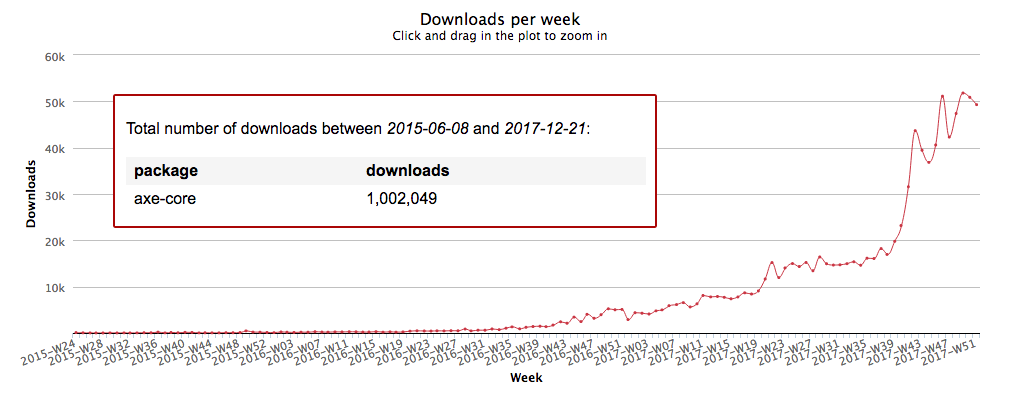
2017 was an exciting year for axe-core. At the beginning of the year the Deque team found out Google would be integrating the axe-core rules engine into their Lighthouse testing tools. axe then became part of Chrome Devtools, providing Devtools’ 20 million users with easy access to accessibility testing. In the fall, Microsoft announced that aXe-core would be integrated into Sonarwhal – their web linting tool. And as we kick off 2018, aXe-core has hit 1,000,000 downloads on npm.

Screengrab of npm stats showing aXe-core downloads over time.
axe-core reach 1 million downloads on npm at the end of 2017.

When axe-core was released as open source in 2015, we hoped that it would propel accessibility testing towards standardization. If developers and accessibility experts could agree on a standard set of automated accessibility testing rules, everyone could stop spending their time arguing about violations and interpretations of WCAG, and start focusing on the best ways to find and fix violations. Sometimes it seemed like a utopian fantasy where we all stand together and sing “Kumbaya.” Luckily, people agreed that adopting shared accessibility testing rules was a good idea, and they agreed that the Deque team had built the best rules engine out there. We now have over 100,000 users across our browser extension.

We are grateful to Google and Microsoft for believing in axe and for making accessibility a priority in their own web testing tools, but none of this means anything if no one is using the tools and doing the work to make the web accessible. Thank you to each and every one of our users & contributors – whether you’re using an axe extension, the Github repository, Chrome DevTools, Sonarwhal, or WorldSpace Attest – every one of those million downloads represents someone trying to make something accessible, and we applaud you. Keep fighting the good fight.

Dylan Barrell

Dylan Barrell

Dylan is Deque's CTO and leads product development initiatives. He works to help to build a barrier-free web by making it really easy for developers, quality assurance engineers and content writers to create accessible applications and content. Dylan has an MBA from the University of Michigan and a BS from the University of the Witwatersrand.

Tags:  axe-core lighthouse news npm sonarwhal


Illustration of people walking within a book

Hello, everyone! We are back on our accessibility adventure through WCAG 2.1, the seventh public working draft! This draft was published on December seventh by the W3C. Our focus today is going to be on the success criteria that are coming up as proposals in WCAG 2.1 that are focused on the needs of people with cognitive disabilities.

In our last episode, we talked about the needs for low vision and covered the four success criteria that are related to low vision. In this episode, we’ll talk about the six proposed success criteria that are related to cognitive, and in our next episode, we’ll talk about the 10 proposed success criteria for mobile related to WCAG 2.1. When it comes to cognitive, this is an area where people with cognitive disabilities can benefit greatly from additions to the web content accessibility guidelines. Let’s look at them in the order that they’re currently appearing in the seventh public working draft.

Feel free to follow along with the video below:

Success Criterion 1.3.4: Identify Common Purpose

The first criterion related to cognitive is called identify common purpose. Imagine that you’re going to a website for the very first time. You’ve never used the web and you’re looking around at the controls: you’ve never seen a hamburger menu, you don’t understand what that gear symbol means, and you’re not sure what the magnifying glass means. This experience is common to persons with cognitive disabilities when they arrive at a new website, they must try to understand these controls. This success criterion will allow interfaces to become more intuitive. Specifically, this is intended for people with cognitive disabilities, but it will benefit us all.

The SC text is a bit hard to parse, but it states “in content implemented using markup languages, for each user interface component that serves a purpose identified in the common purposes for user interface components, that that purpose can be programmatically determined.” In a nutshell, imagine that each common purpose control on a website had a programmatic identification so that you could always easily find where’s the search on this page. This SC is coming in as a double-A proposed success criteria and it’s specifically from the cognitive taskforce.

Success Criterion 1.3.5: Contextual Information

The second SC that will help make things more intuitive for people with cognitive disabilities or any of us, is a triple-A success criterion and is called contextual information. This SC is a little bit more future thinking. It is important to note that most people don’t go to triple-A, so don’t worry too much about this one yet unless you’re a pioneer. If you’re an accessibility pioneer, then you will want to pay attention to this one.  In this new SC for contextual information, we’re going to look for how can we personalize web content for people with cognitive disabilities so that they can understand it.

The persona quote for this SC is, “what would a person say if you weren’t doing these in the future, they would say oh my gosh, I don’t know how to use this page, or I can’t find this.” This is the key to the future personalization for people with cognitive disabilities. In the next six months, we will start to see some of these personalization features coming to life during the implementation phase of WCAG 2.1.

Success Criterion 2.2.6: Accessible Authentication

The next of the success criterion for people with cognitive disabilities specifically is called accessible authentication and it’s recommended at a single-A. The persona quote for this would be “hmm, are you trying to make it impossible for me to log in?” In this age of security breaches, having an authentication process that makes sure the right person is logged in before you share private information is very important. However, it is important to not make it so hard that people with minimal cognitive disabilities or even intermediate cognitive disabilities have zero chance of logging in.

The SC text for this is “essential steps of an authentication process which rely upon recalling or transcribing information have one of the following: alternative essential steps, which don’t make you recall or transcribe, or, a way to reset, an authentication credential reset process. Except for when the following are true: if the authentication process involves basic personal information like your name, your address, your email address, your social security number, or if it’s not achievable due to legal requirements.”

Success Criterion 2.2.7: Interruptions (Minimum)

For a person with a cognitive disability, web pop-ups and interruptions is often destructive to their mental process. This proposed SC is called interruptions minimum and it’s coming in at double-A. The persona quote for this success criterion is “stop interrupting me.” When a person’s trying to focus on something, let them focus, don’t interrupt. The proposed SC text for this is “a mechanism is available to postpone and suppress interruptions and changes in content unless they’re initiated by the user or involve an emergency.”While this is very important to people with cognitive disabilities, many of us would say that this will make for a better user experience for us all.

Success Criterion 2.2.8: Timeouts

In WCAG 2.0, there is already an SC related to time. However, this success criterion for timeouts is recommended at triple-A and requests that a page will let you know in advance that there is a timeout.  For example, this SC would not allow a page to tell you mid-session that you only have two minutes left and let you extend, extend, and extend. The persona quote for this timeout requirement would be “curses, what just happened? I didn’t know that there was a timeout, I would’ve been more prepared.”

The specific SC text for this currently reads “when data can be lost due to user inactivity, users are warned about the estimated length of inactivity that generates the data loss. Unless the data is preserved for a minimum of 20 hours of user inactivity.”

Success Criterion 2.2.9: Animation from Interactions

Animations on some web content can be less than beautiful, and for people with cognitive disabilities that animation from an interaction might actually make it so that their brain cannot focus on what they need to focus. In WCAG 2.0 there is already pause, stop, and hide which helps, but this SC takes it one step further. Animations from interactions at triple-A, and the persona quote for that is “I’m sure you think your animations are cute, but they’re making me nauseous. They’re making me dizzy so my brain can’t even comprehend the page.”

The SC text for animations from interactions currently sits reads “for non-essential animations triggered by a user action there’s a mechanism to disable the animation, yet still perform the action.” Don’t force animations that are not required on people as it might make them dizzy.

In summary, we just covered a quick tour through the six proposed SC that is coming from cognitive in WCAG 2.1 working draft. Stay tuned for next week’s recording that will cover the 10 SC in the WCAG 2.1 working draft that cover mobile.

Glenda Sims

Glenda Sims

Glenda Sims is the Chief Information Accessibility Officer at Deque, where she shares her expertise and passion for the open web with government organizations, educational institutions, and companies ranging in size from small businesses to large enterprise organizations. Glenda is an advisor and co-founder of AIR-University (Accessibility Internet Rally) and AccessU. She serves as an accessibility consultant, judge, and trainer for Knowbility, an organization whose mission is to support the independence of people with disabilities by promoting the availability of barrier-free IT. In 2010 Glenda co-authored the book InterACT with Web Standards: A holistic approach to Web Design.

Robot at computer thinking about accessibility

Web accessibility is all about making sites and applications that everyone can use, especially people with disabilities. With a rather large list of competing priorities when building for the web, from accessibility to performance to security, it makes sense to automate parts of the process. Manual testing is a necessity for accessibility, however, a certain amount of the effort can and should be spent on automation, freeing up human resources for more complex or nuanced tasks.

Automated testing is a great way to start weaving accessibility into your website, with the ultimate goal of shifting left more and more towards the UX and discovery process. Automated testing definitely can’t catch everything, but it’s a valuable way to address easy wins and prevent basic fails. Build accessibility into your UI code, document features for teams, and ideally, prevent regressions in quality from deploying to production.

In this post, we’ll highlight the strengths and weaknesses of automated testing for web accessibility to both add value to your workflow and support people with disabilities.

Free humans up for more complex tasks

Many accessibility and usability issues require manual testing by a developer or QA person, while some can be automated. Ultimately, which automated tests you write will depend on the type of project: is it a reusable pattern library, or a trendy marketing site? A pattern library would benefit from a range of automated tests, from unit to regression; a trendy marketing site would be lucky to have any kind of testing at all.

When deciding what tests to automate, it helps to focus on the basics in core user flows. In my opinion, accessibility is a basic requirement of any user interface–so why not have test coverage for it? You can automate testing of keyboard operability and accessible component features with your own test logic, and layer on additional tests using an accessibility API for things like color contrast, labels, and ARIA attribute usage.

Think of it this way: can you budget the time to manually test everything in your application? At some point it does become cost and time prohibitive to test everything by hand and automation becomes a necessity. It’s all about finding a sweet spot with intentional test coverage that still provides value and a good return on investment.

Unit, integration, end-to-end, what the what?

There are many different types of automated tests, but two key areas for accessibility in web development are unit and integration tests. These are both huge topics in themselves, but the basic idea is that a unit test covers an isolated part of a system with no external dependencies (databases, services, or calls to the network). Integration tests cover more of the system put together, potentially uncovering bugs when multiple units are combined. End-to-end tests are a type of integration test, potentially even more broad to mimic a real user’s experience–so you’ll also hear them mentioned in regards to accessibility.

For accessibility, unit tests typically cover underlying APIs that plumb accessibility information or interactions to the right place. You should test APIs in isolation, calling their methods with fake data, called “inputs”. You can then assert these method calls modify the application or its state in an expected way.

it('should pass aria-label to the inner button', inject(function() {
   var template = '<custom-button label="Squishy Face"></custom-button>';
   var compiledElement = make(template);

   expect(compiledElement.find('button').attr('aria-label')).toEqual('Squishy Face');
}));

You can unit test isolated UI components for accessibility in addition to underlying APIs, but beware that some DOM features may not be reliable in your chosen test framework (like document.activeElement, or CSS :focus). Integration tests, on the other hand, can cover most things that can be automated for accessibility, such as keyboard interactions.

It helps to have a range of unit and integration tests to minimize regressions–a.k.a. broken code shipping to production–when code changes are introduced. For tests to be useful, they should be intentional: you don’t want to write tests for tests’ sake. It’s worth it to evaluate key user flows and interactions, and assert quality for them in your application using automated tests.

Avoiding stale tests

No matter what kind of test you’re writing, focus on the outcome, not the implementation. It’s really easy for tests to get commented out or removed in development if they break every time you make a code change. This is even more likely with automated accessibility tests that your colleagues don’t understand or care about as deeply as you do.

To guard against stale tests, assert that calling an API method does what you expect without testing its dependencies or internal details that may change over time. You can call API methods directly in unit tests (i.e. “with this input, method returns X”), or indirectly through simulated user interaction in integration tests (i.e. “user presses enter key in widget, and X thing happens”). Testing outcomes instead of implementations makes refactoring easier, a win for the whole team!

No matter what kind of test you’re writing, focus on the outcome, not the implementation.

In reality, it can be difficult to maintain UI tests when there are a lot of design changes happening–that’s often why people say to avoid writing them. But at some point, you should bake in accessibility support so you don’t have to test everything manually. By focusing on the desired outcome for a particular component or interaction, hopefully you can minimize churn and get a good return on investment for your automated test suite. Plus, you might prevent colleagues or yourself from breaking accessibility support without realizing it.

To learn more testing fu, check out this talk from Justin Searls on how to stop hating your tests.

Keyboard testing & focus management

In a basic sense, the first accessibility testing tool I would recommend is the keyboard. Tab through the page to see if you can reach and operate interactive UI controls without using the mouse. Can you see where your focus is placed on the screen? Using only the keyboard, can you open a modal layer over the content, interact with content inside, and continue with ease upon closing? These are critical interactions for someone who can’t use a mouse or see the screen.

While the keyboard is a handy manual testing tool, you can also automate testing of keyboard operability for a user interface. For interactive widgets like tab switchers and modals, tests can ensure functionality works from the keyboard (and in many cases, screen readers). For example, you could write tests asserting the escape key closes a modal and handles focus, or the arrow keys work in a desktop-style menu. These are great tests to write in your application to ensure they still work after lots of code changes.

Unit testing focus

It’s debatable whether a unit test should assert actual focus in the DOM, such as document.activeElement being an expected element. Unit testing tools frequently fail at the task, and you’ll end up chasing down bugs related to your test harness instead of writing useful test cases.

You can try using something like Simulant, so long as keyboard focus is tested within a single unit, perhaps within an isolated component. In that case, go for it (and let me know which tools you end up using)! However, keyboard focus is often better tested in the integration realm, both because of ease in tooling and because a user’s focus frequently moves between multiple components (thus stepping outside the bounds of a single code unit).

Instead of unit testing interactions and expecting a focused element, you can write unit tests that call related API methods with static inputs, such as state variables or HTML fragments. Then you can assert those methods were called and the state changed appropriately.

Here’s a unit test example for a focus manager API from David Clark’s React-Menu-button:

it('Manager#openMenu focusing in menu', function() {
    var manager = createManagerWithMockedElements();
    manager.openMenu({ focusMenu: true });
    expect(manager.isOpen).toBe(true);
    expect(manager.menu.setState).toHaveBeenCalledTimes(1);
    expect(manager.menu.setState.mock.calls[0]).toEqual([{ isOpen: true }]);
    expect(manager.button.setState).toHaveBeenCalledTimes(1);
    expect(manager.button.setState.mock.calls[0]).toEqual([{ menuOpen: true }]);

    return new Promise(function(resolve) {
      setTimeout(function() {
        expect(manager.focusItem).toHaveBeenCalledTimes(1);
        expect(manager.focusItem.mock.calls[0]).toEqual([0]);
        resolve();
      }, 0);
    });
  });

In contrast, while the above unit test asserts a focus manager API was called, an integration test for focus management could check for focus of an actual DOM element.

Here’s an integration (end-to-end) test example from Google’s howto-components:

it('should focus the next tab on [arrow right]', async function() {
   const found = await helper.pressKeyUntil(this.driver, Key.TAB,
     _ => document.activeElement.getAttribute('role') === 'tab'
   );
   expect(found).to.be.true;

   await this.driver.executeScript(_ => {
     window.firstTab = document.querySelector('[role="tablist"] > [role="tab"]:nth-of-type(1)');
     window.secondTab = document.querySelector('[role="tablist"] > [role="tab"]:nth-of-type(2)');
   });
   await this.driver.actions().sendKeys(Key.ARROW_RIGHT).perform();
   const focusedSecondTab = await this.driver.executeScript(_ =>
     window.secondTab === document.activeElement
   );
   expect(focusedSecondTab).to.be.true;
});

For any part of your app that can be manipulated through hover, mousedown or touch, you should consider how a keyboard or screen reader user could achieve the same end-goal. Then write it into your tests.

Of course, what combination of unit and integration tests you write will ultimately depend on your application. But keyboard support is a valuable thing to cover in your automated tests no matter what, since you will know how the app should function in that capacity. Which brings us to:

Testing with the axe-core accessibility API

In addition to your app’s custom automated tests, there’s a lot of value in incorporating an accessibility testing API. Writing the logic and boilerplate for some accessibility-related tests can be tedious and error-prone, and it helps to offload some of the work to experts. There are multiple APIs in this space, but my personal favorite (and project I chose to work on full-time), is Deque’s axe-core library. It’s incorporated into Lighthouse for Google Chrome, Sonarwhal by Microsoft’s Edge team, Ember A11y Testing, Storybook, Intern, Protractor, DAISY, and more.

It really helps to test with an API for things like color contrast, data tables, ARIA attribute correctness, and basic HTML semantics you may have forgotten. The axe-core team keeps on top of support for various development techniques in assistive technologies so you don’t have to do all of that work yourself, something we refer to as “accessibility supported”. You can rely on test results to cover you in browsers and screen readers you might not test everyday, freeing you up for other tasks.

You can utilize the axe.run() API method in multiple ways: isolate the accessibility rules on a single component with the context option, perhaps in a unit test. Or, run the entire set of rules on a document in a page-level integration test. You can also look at the axe-webdriverjs integration, which automatically injects into iframes, unlike axe-core. Note: you can also use the aXe browser extensions for Chrome and Firefoxto do a quick manual test with the same ruleset, including iframes.

Here’s a basic example of using axe-core in a unit test:

var axe = require('axe-core');

describe('Some component', function() {
    it('should have no accessibility violations', function(done) {
        axe.run('.some-component', {}, function(error, results) {
            if (error) return error;
     
         expect(results.violations.length).toBe(0);
        });
    });
});

In contrast, here’s an axe-webdriverjs integration test for more of a page-level experience, which is sometimes better for performance when you’re running many tests:

var AxeBuilder = require('axe-webdriverjs'),
Webdriver = require('selenium-webdriver');

describe('Some page', function() {
  it('should have no accessibility violations', function(done) {
    var driver = new Webdriver.Builder().forBrowser('chrome').build();

    driver.get('http://localhost:3333')
      .then(function(done) {
        AxeBuilder(driver)
          .analyze(function(results) {
            expect(results.violations.length).toBe(0);
            done();
        });
    });
  });
});

In both of these tests, a JSON object is returned to you with everything axe-core found: arrays of passes, violations, and even a set of “incomplete” items that require manual review. You can write assertions based on the number of violations, helpful for blocking builds locally or in Continuous Integration (CI).

It’s important to write multiple tests for each state of the page, including opening modal windows, menus, and other hidden regions that will otherwise be skipped by the API. This makes sure that you’re testing each state of the page for accessibility, since an automated tool can’t guess your intent when things are hidden with display: none or dynamically injected on open.

You can reference the axe-core and axe-webdriverjs API documentation to learn about all of the configuration options, from disabling particular rules, to including and excluding certain parts of the DOM, and adding your own custom rules. The upcoming 3.0 version of axe-core also supports Shadow DOM, which you can use with a prerelease API version or in the free aXe Coconut extension.

Find additional integrations and resources on the axe-core website: https://axe-core.org

Manual testing and user testing

It’s important to reiterate that automated testing can only get you so far in regards to accessibility. It’s no substitute for manual testing with the keyboard and screen readers along the way, including mobile devices. Some of these scenarios also can’t be automated at all.

You can cover the basics with manual testing and your automated tests. But to determine whether your app is actually usable by humans requires user testing. There’s a reason recent initiatives like ACAA (the Air Carrier Access Act) require user testing as part of their remediation steps.

Once your digital experience has stabilized a bit, it’s extremely important to user test with actual people, including those with disabilities. One exception to this might be in the prototyping phase, where you want to gather feedback from users before deciding on an official solution. In either case, organizations like Access Works can help you find users for testing. You should also consider remote testing to get the most out of your efforts.

Wrapping Up

Automated tests can help free up your team from manual testing every part of your app or website. At some point, automated tests become more efficient than having humans do everything. By being intentional with your test strategy and adding coverage for accessibility, you can communicate code quality to members of your team and potentially prevent regressions from deploying to production.

Valuable automated tests assert keyboard interactions, accessible API plumbing, and use of accessibility test APIs like axe-core to free you up from writing boilerplate code that’s easy to get wrong. However, automated tests are no substitute for regular manual testing yourself, and testing with actual users. A well-rounded, holistic testing approach is the best way to ensure quality is upheld in all stages of the process.

Don’t hesitate to reach out to me on Twitter if you have any questions or if you have a different approach! I’d love to hear about what works for you.

As my colleague Glenda Sims likes to say, “To A11y and Beyond!”

Marcy Sutton

Marcy Sutton

Marcy is a Developer Advocate at Deque Systems. She's also an #axeCore team member, @a11ySea meetup organizer & mountain enthusiast.

An illustration of construction site for laptop and cell phone.

My colleagues and I believe in sustainable accessibility efforts. We’ll hold your hand through those early projects, but, ultimately, we want to equip you and your team to manage your own accessibility. But having the tools and expertise is only half the battle.

Just as buying and learning how to operate a treadmill won’t improve your health, knowing how accessibility fits into your development process and buying testing tools won’t make your software accessible. You have to actually do the work, and doing requires motivation. Unfortunately, as many treadmill owners know, motivation is elusive. You have to cultivate it. You plan a routine, you find ways to make yourself accountable, you set reachable goals, and you remove any barriers to getting started.   

At the organizational level, this means establishing leadership, developing internal accessibility policies and practices throughout the organization, and equipping your teams for success.


Find Your Accessibility Champions

To build a culture of accessibility, you need leadership in all the key divisions and departments of your organization. This doesn’t necessarily mean hiring someone to manage a department’s accessibility full-time. Your accessibility leaders don’t have to be accessibility experts, but they do have to be aware of the work involved and what they are accountable for.

Nearly everyone in the organization is responsible for accessibility at some level.

Your leaders are responsible for making sure individual team members know what their responsibilities are and that they are equipped to deliver. This could mean providing training resources, purchasing tools, getting expert support, etc.

Here’s a breakdown of how leaders in different divisions contribute to a culture of accessibility. As we mentioned in Building Your Core Accessibility Team in 5 Steps, ideally you’ll have a point-person for each team.

  • Executive Level: Executive leadership is responsible for supporting the program and ensuring that that accessibility is incorporated into their organization’s identity and business goals.
  • Product and Project Managers: Product and Project Managers might have the heaviest lifting to do – it’s their job to ensure that accessibility testing and remediation are actively incorporated into the planning and building of products and deliverables.
  • Content Creators and Contributors: Content creators need to develop basic skills to ensure that the web content, documents, emails, etc. that their generating is accessible. This goes for internal as well as external communications. It can also mean ensuring that any templates or components generated by 3rd party content management systems are accessible.
  • Design (Visual, Interaction, User Experience): You can save your team so much time and tedious remediation work if you can catch accessibility issues in the design phase. Accessibility should be a consideration in when establishing brand colors and style guides (watch out for color contrast!), in the development of UI components and templates, and in the creation of any print or marketing templates. Identifying accessibility issues in the wireframing stage will ensure that your team can come up with solutions before any code gets written.
  • Development: Your dev team is actually going to be building these sites and web components. They should incorporate automated accessibility testing into their integration and unit testing. With some training, they can also improve accessibility with the use of ARIA and by simply being more disciplined in their use of semantic markup.
  • Quality Assurance: QA testing should include manual testing with assistive technology like screen readers, screen magnifiers, and for keyboard-only usage. The QA team also needs to ensure their accessibility issue reporting is clear and consistent so the dev team can fix issues as efficiently as possible.
  • Usability Testing: Usability testing should also include testing with assistive technology. Better yet, have persons with varying disabilities perform usability testing.
  • Legal and Compliance: It’s up to the compliance team to make sure that the executive team and other leaders are aware of the organization’s legal obligations with regard to accessibility. Everyone should understand the consequences of non-compliance and ensure that the company maintains a current accessibility statement and any conformance documentation that might be required.
  • Human Resources: Human Resources is responsible for the organization’s hiring process and applications are accessible; internal systems for time tracking, benefits, training, intranet pages, etc. are accessible. Depending on how your organization is structured, they may also be responsible for making sure that third-party procurement policy documentation includes accessibility. Finally, HR is also critical to ensuring that accessibility training is part of onboarding and that each department or division of the organization documents their accessibility policies and procedures.

This is by no means a comprehensive list – your organization may follow a very different structure – but odds are good that the different functions do apply. The point is to make sure that each team and division within your organization is aware of the role they have to play in accessibility and that someone is accountable for each team’s contribution to your culture of accessibility.

Keep an eye out for the follow-up to this post where we’ll talk about establishing internal accessibility processes and equipping your teams for success.

Dennis Lembree

Dennis Lembree

Digital accessibility professional specializing in web accessibility, interaction design, and usability.