Die Browser-Erweiterung „axe DevTools“ in der Version 4.19.0 enthält einige großartige Neuerungen.
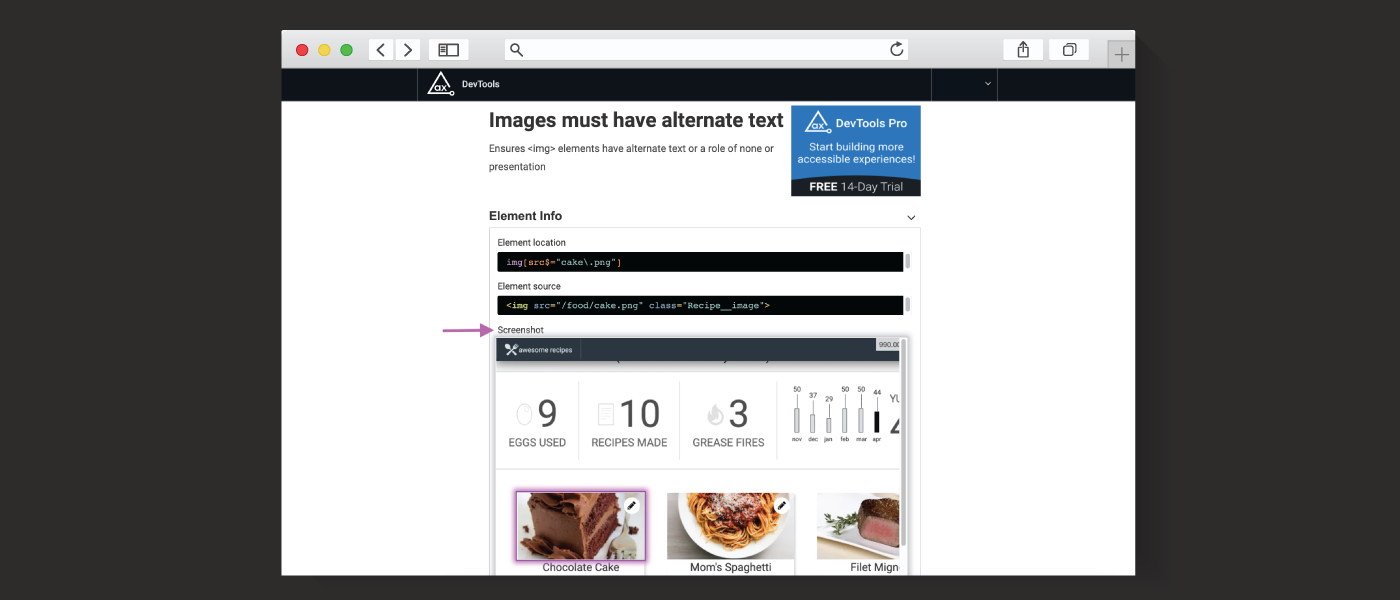
Der Schwerpunkt dieser Version liegt auf der Erstellung von Screenshots zu Fehlern. Wenn Pro-Nutzer Fehler weitergeben, die durch automatisierte Analysen oder einen unserer „Intelligent Guided Tests™“ (IGTs) entdeckt wurden, erstellt die Erweiterung nun einen Screenshot des betreffenden Elements und speichert ihn, um Kontext und Einblicke in den Fehler zu liefern!
Darüber hinaus wird die Version 4.19 einige wichtige Fehlerbehebungen sowie ein Upgrade auf die Version 4.3.5 von „ axe-core “ enthalten.
Vorstellung der Screenshots zur aktuellen Ausgabe
Das Hervorheben eines Barrierefreiheitsproblems ist eine hervorragende Möglichkeit, das zugehörige HTML-Element im Kontext der gesamten Seite zu betrachten. Was aber, wenn Sie ein Problem speichern und später darauf zurückkommen möchten? Was, wenn Sie diesen aufschlussreichen Kontext mit einem Kollegen in Ihrem Team teilen möchten? Mit unserer neuen Funktion zum Erstellen von Screenshots von Problemen ist das möglich!
Jedes Mal, wenn Sie einen automatisierten Scan oder einen IGT ausführen, erstellt die Browser-Erweiterung „axe DevTools“ automatisch einen Screenshot des Problems für Sie. Bei automatisierten Problemen wird die gesamte Seite erfasst und das betreffende Element auf dieser Seite hervorgehoben. Bei IGT-Problemen wird ein Screenshot nur des betreffenden Elements erstellt. Wenn Sie ein Problem teilen, wird der zugehörige Screenshot mitgesendet.
Sehen Sie sich ein kurzes Demo-Video an, um mehr über diese neue Funktion zu erfahren.
Verwaltung Ihrer Daten
Um diese neue Funktion zu unterstützen, erfasst und speichert unsere Erweiterung, wie zu erwarten, zusätzliche Daten (den Screenshot). Der Screenshot ist ausschließlich im Zusammenhang mit Ihrem freigegebenen Ticket sichtbar, und wir werden Ihre Daten unter keinen Umständen an Dritte weitergeben.
Deaktivierung von Screenshots
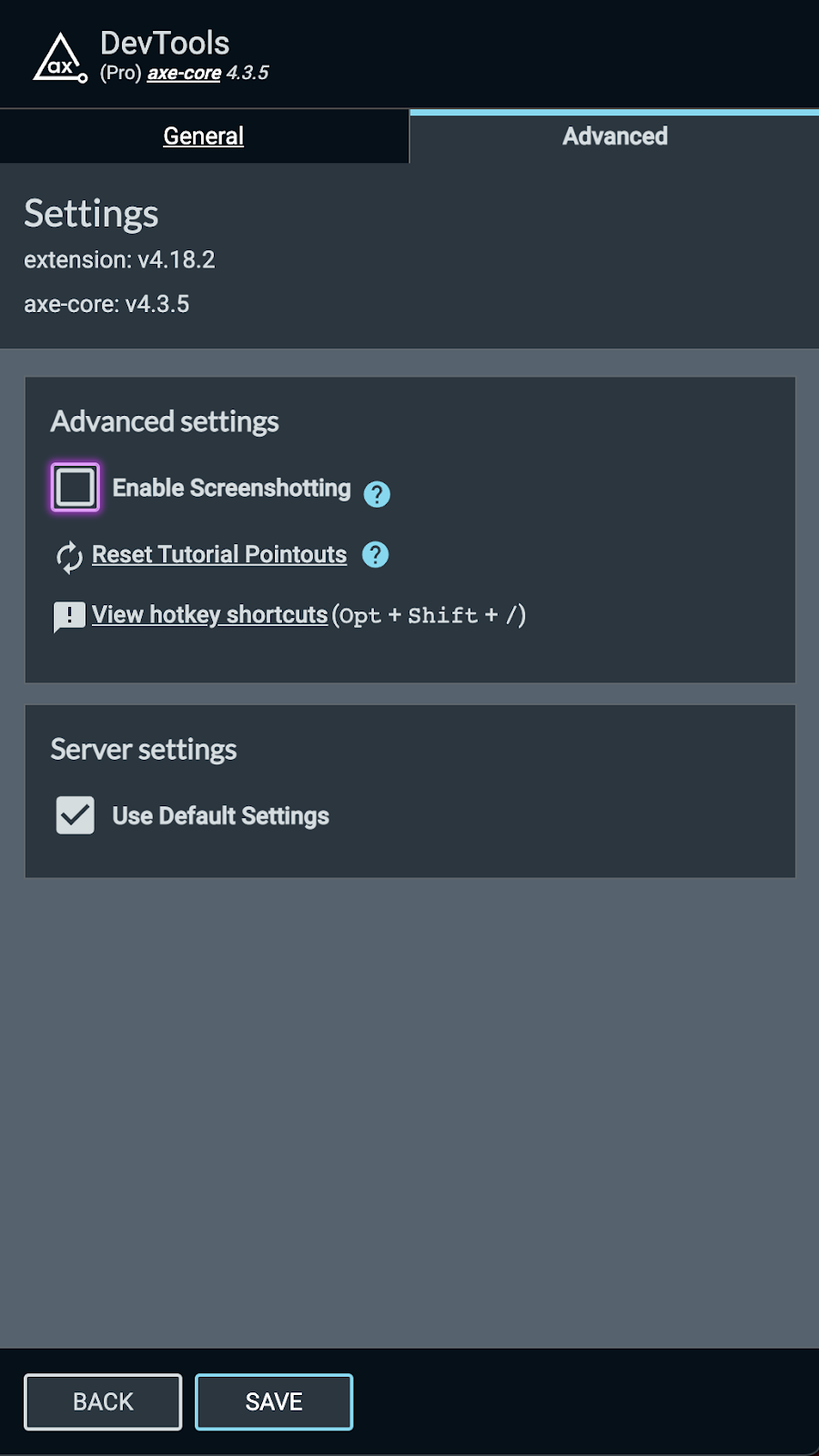
Wir raten zwar davon ab, die Screenshot-Funktion zu deaktivieren, doch wenn Sie sich mit dieser Funktion nicht wohlfühlen, können Sie sie in den Einstellungen deaktivieren. Dadurch werden jedoch alle Screenshots deaktiviert, einschließlich unserer IGT-Optimierungen durch maschinelles Lernen, die Ihnen viel Zeit sparen.
So deaktivieren Sie alle Screenshot-Funktionen:
- Klicken Sie auf das Optionsmenü in der oberen rechten Ecke der Axe DevTools-Erweiterung
- Wählen Sie „Einstellungen“ aus
- Klicken Sie auf „Erweitert“
- Deaktivieren Sie das Kontrollkästchen „Screenshots aktivieren“
- Klicken Sie auf „SPEICHERN“.
Konfiguration vor Ort/in der privaten Cloud
Wenn Sie eine lokal installierte Instanz des axe DevTools-Servers nutzen, muss die Screenshot-Funktion installiert und aktiviert werden. Bitte wenden Sie sich an helpdesk@deque.com, wenn Sie diese großartige neue Funktion aktivieren lassen möchten.
Fazit
Wie immer ist es unser Ziel, das Testen der Barrierefreiheit für alle einfacher und effizienter zu gestalten. Sie und Ihre Teamkollegen werden den Kontext, den diese brandneue Screenshot-Funktion für Issues bietet, sicherlich zu schätzen wissen. Viel Spaß mit der neuen und verbesserten Ansicht für gemeinsam genutzte Issues und viel Erfolg beim A11y-Testen!
Denken Sie daran: Wenn Sie axe DevTools Pro derzeit noch nicht nutzen, können Sie es kostenlos testen (keine Zahlung erforderlich).