La version 4.19.0 de l'extension de navigateur Axe DevTools comprend des mises à jour géniales.
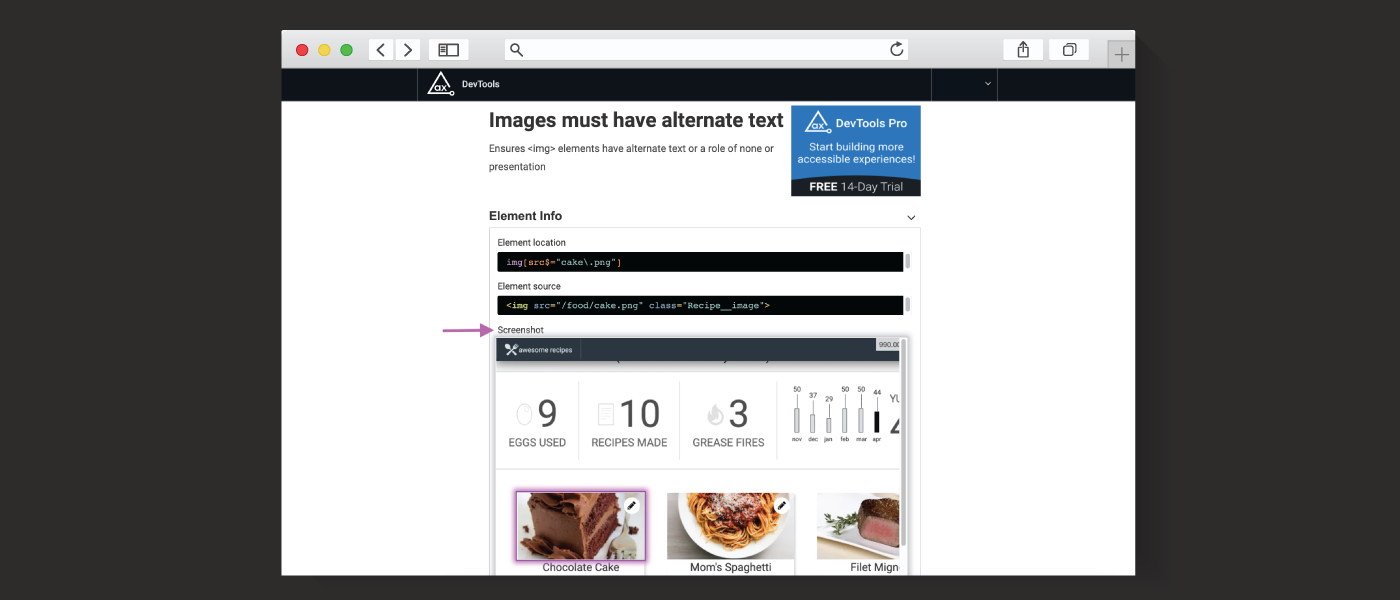
Cette mise à jour est principalement axée sur la capture d'écran des problèmes. Lorsque les utilisateurs Pro partagent des problèmes détectés par l'analyse automatisée ou l'un de nos tests guidés intelligents™ (IGT), l'extension capture et enregistre désormais une capture d'écran de l'élément concerné afin de fournir du contexte et des informations supplémentaires sur le problème !
Par ailleurs, la version 4.19 apportera plusieurs corrections de bogues importantes ainsi qu'une mise à jour vers la version 4.3.5 d'axe-core .
Présentation des captures d'écran du numéro
Mettre en évidence un problème d'accessibilité est un excellent moyen de visualiser l'élément HTML associé dans le contexte de la page entière, mais que faire si vous souhaitez enregistrer un problème pour y revenir plus tard ? Et si vous souhaitez partager ce même contexte pertinent avec un autre membre de votre équipe ? Grâce à notre nouvelle fonctionnalité de capture d'écran des problèmes, c'est désormais possible !
Chaque fois que vous lancez une analyse automatisée ou un test IGT, l'extension de navigateur axe DevTools capture automatiquement une capture d'écran du problème pour vous. Pour les problèmes détectés automatiquement, elle capture la page entière et met en évidence l'élément concerné au sein de cette page. Pour les problèmes détectés par un test IGT, elle ne capture que l'élément en question. Lorsque vous partagez un problème, la capture d'écran associée est incluse.
Regardez une courte vidéo de démonstration pour en savoir plus sur cette nouvelle fonctionnalité.
Gérer vos données
Pour prendre en charge cette nouvelle fonctionnalité, notre extension capture et stocke des données supplémentaires (la capture d'écran), comme vous pouvez vous y attendre. La capture d'écran n'est visible que dans le cadre de votre ticket partagé et nous ne partagerons jamais aucune de vos données avec qui que ce soit, pour quelque raison que ce soit.
Désactivation des captures d'écran
Bien que nous ne recommandions pas de désactiver la fonction de capture d'écran, si celle-ci vous dérange, vous pouvez la désactiver dans les paramètres. Cependant, cela désactivera toutes les captures d'écran, y compris nos optimisations basées sur l'apprentissage automatique IGT, qui vous font gagner un temps considérable.
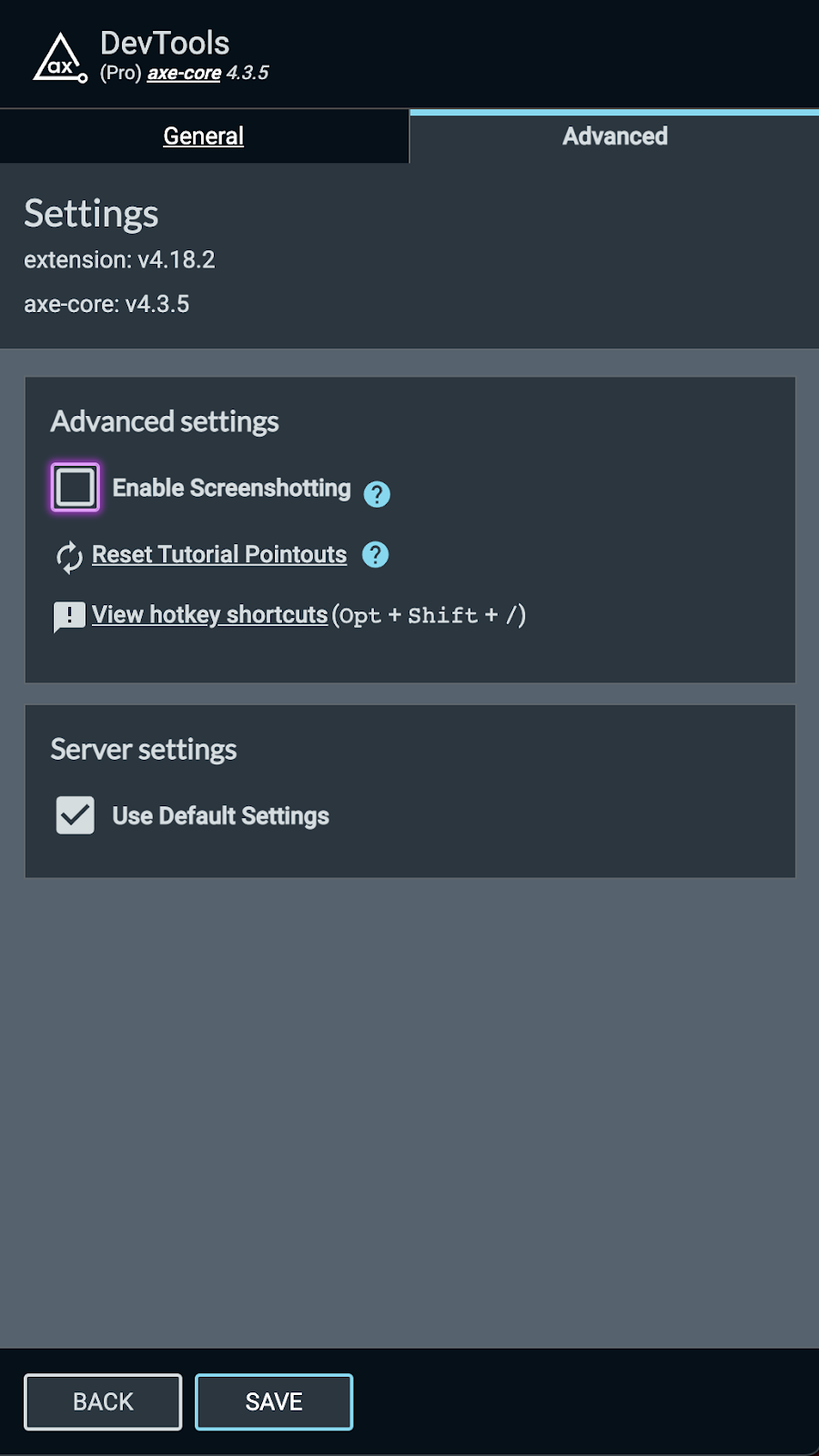
Pour désactiver toutes les captures d'écran :
- Cliquez sur le menu des options situé dans le coin supérieur droit de l'extension Axe DevTools.
- Sélectionnez « Paramètres »
- Cliquez sur « Avancé »
- Décochez la case « Activer la capture d'écran »
- Cliquez sur « ENREGISTRER ».
Configuration sur site / dans un cloud privé
Si vous disposez d'une instance sur site du serveur axe DevTools, la fonctionnalité de capture d'écran devra être installée et activée. Veuillez contacter helpdesk@deque.com si vous souhaitez que cette nouvelle fonctionnalité très pratique soit activée.
Conclusion
Comme toujours, notre mission est de rendre les tests d'accessibilité plus faciles et plus efficaces pour tous. Vous et vos collègues apprécierez certainement le contexte fourni par cette toute nouvelle fonctionnalité de capture d'écran des tickets. Profitez de cette nouvelle vue partagée des tickets, désormais améliorée, et bons tests d'accessibilité !
N'oubliez pas : si vous n'utilisez pas encore axe DevTools Pro, vous pouvez l'essayer gratuitement (aucun paiement requis).