La nouvelle version 4.52.0 de l'extension de navigateur axe DevTools introduit une toute nouvelle fonctionnalité qui permet aux utilisateurs de générer un rapport récapitulant tous les tests effectués dans le cadre d'un test enregistré donné. Cette fonctionnalité «Partager l'historique des tests »est similaire à la fonctionnalité «Partager un ticket »dans la mesure où il s'agit d'un rapport HTML hébergé sur le portail de compte axe. Cela permet aux utilisateurs de partager facilement les résultats de leurs tests avec n'importe qui.
Comment ça marche ?
Avant cette version, les utilisateurs ne pouvaient partager l'intégralité de leurs résultats de test enregistrés qu’à l’aide de la fonction « Exporter au format JSON : tests et problèmes enregistrés ». Cette fonctionnalité est utile pour les utilisateurs techniques qui peuvent utiliser ce fichier JSON pour agréger les données d’un ou plusieurs tests, ou provenant d’autres produits d’ Deque , tels que les API axe DevTools. Cependant, après avoir recueilli les retours des utilisateurs, nous avons constaté une lacune dans nos fonctionnalités de reporting, qui est désormais comblée par ce nouveau « test enregistré partagé ».
Le rapport de test complet enregistré est une représentation en temps réel d'un test axe DevTools Pro enregistré, accessible via une URL dédiée. Il contient une ventilation détaillée de tous les problèmes détectés lors d'un test enregistré, qu'ils aient été identifiés automatiquement ou via les tests guidés intelligents (IGT). De plus, il propose une ventilation détaillée des IGT, qui vous permet de consulter les données de chaque outil.
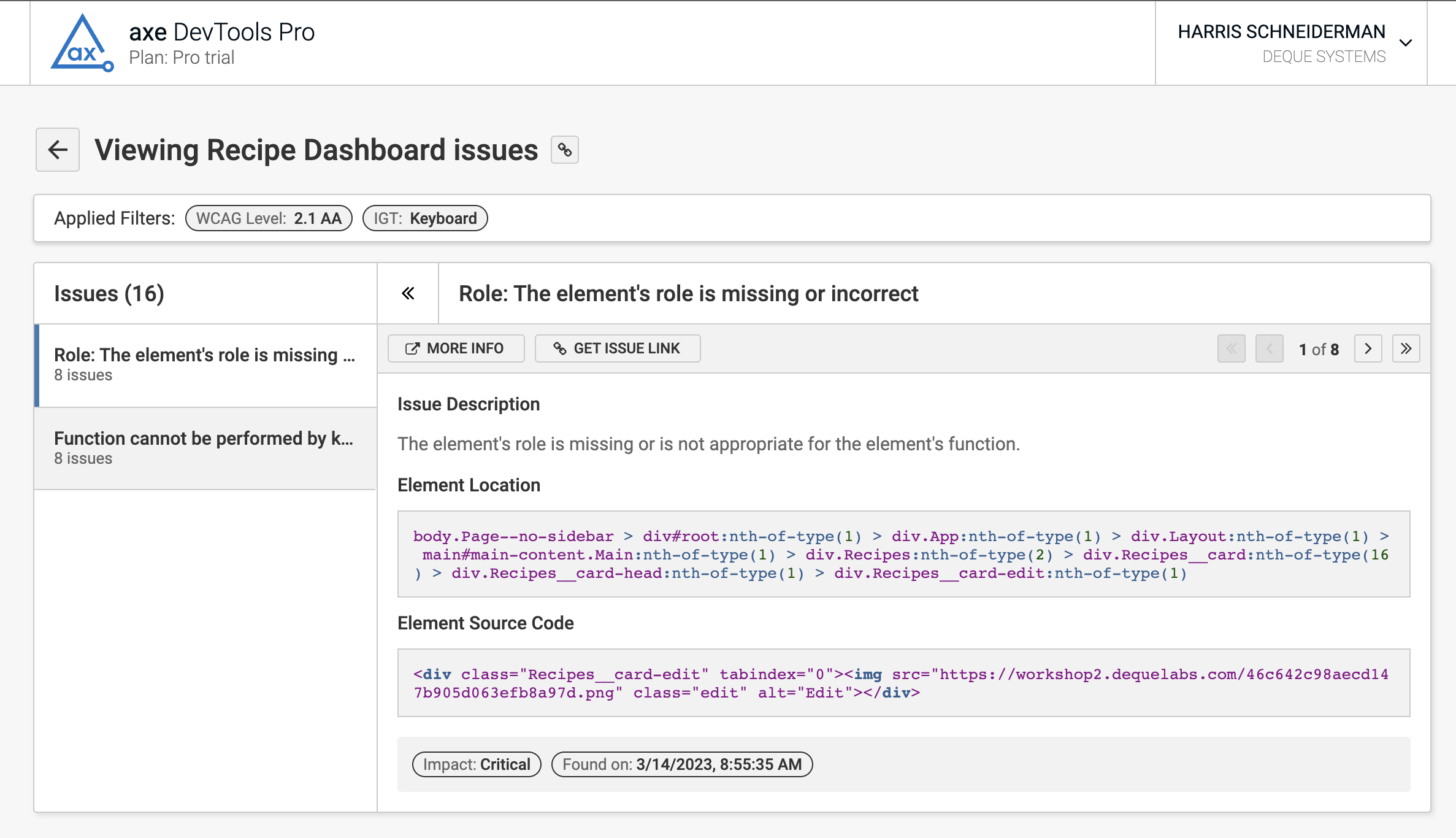
Ce rapport de test partagé contient également des liens vers une toute nouvelle vue des problèmes filtrable, dans laquelle les utilisateurs peuvent consulter les problèmes selon un large éventail de critères de filtrage. Cette vue « problèmes détaillés » permet de trier les problèmes par impact, IGT, méthode de test (automatique ou guidée), et bien plus encore. Elle permet aux utilisateurs de partager aussi bien un problème isolé qu’un rapport regroupant plusieurs problèmes, qu’ils peuvent utiliser pour configurer leurs critères de filtrage.
Les utilisateurs peuvent également partager automatiquement tous les tickets d'un test enregistré partagé. Cela signifie qu'une fois le test partagé, tous ses tickets disposeront d'une URL dédiée, de sorte que chaque ticket inclus dans l'exportation des tickets aura un champ « URL de partage » prérempli.
Partager un test enregistré
Pour partager un test enregistré, rien de plus simple :
- Ouvrir l'extension DevTools
- Lancer une analyse en cliquant sur « Analyser TOUTE ma page » ou « Analyser UNE PARTIE de ma page »
- Enregistrez vos résultats en cliquant sur « Enregistrer le test » et en donnant un nom à votre test
- Cliquez sur le bouton « Partager les résultats du test » (n'oubliez pas d'effectuer vos tests de tolérance au glucose également !)
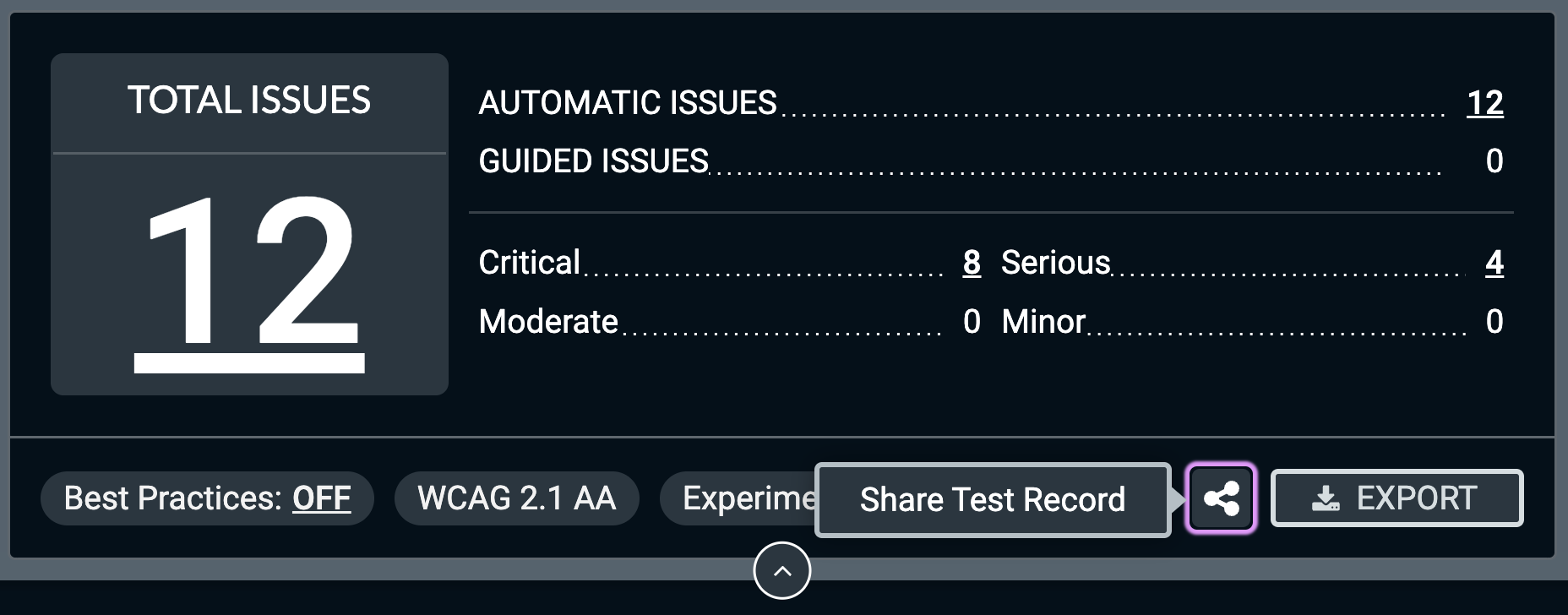
Lorsque les utilisateurs cliquent sur le bouton « Partager l'enregistrement de test », l'outil copie dans le presse-papiers l'URL de la page « Test enregistré et partagé » qui vient d'être créée. Les utilisateurs peuvent ensuite envoyer ce lien à leurs collègues, l'ajouter à un ticket de suivi de problème ou simplement l'ouvrir dans leur navigateur.
Consulter le rapport
La fonctionnalité « Tests enregistrés partagés » propose une vue d'ensemble des tests effectués, ainsi qu'une vue supplémentaire des problèmes qui permet aux utilisateurs de créer des rapports filtrés afin de suivre des ensembles spécifiques de problèmes. L'accès aux rapports dépend du type d'abonnement à axe DevTools Pro dont dispose la personne qui partage les rapports. Ces rapports ne seront accessibles qu'aux utilisateurs connectés au sein de votre organisation pour les clients Entreprise et les clients ayant acheté plusieurs licences en ligne. Pour tous les autres utilisateurs, ces rapports seront accessibles à toute personne disposant du lien.
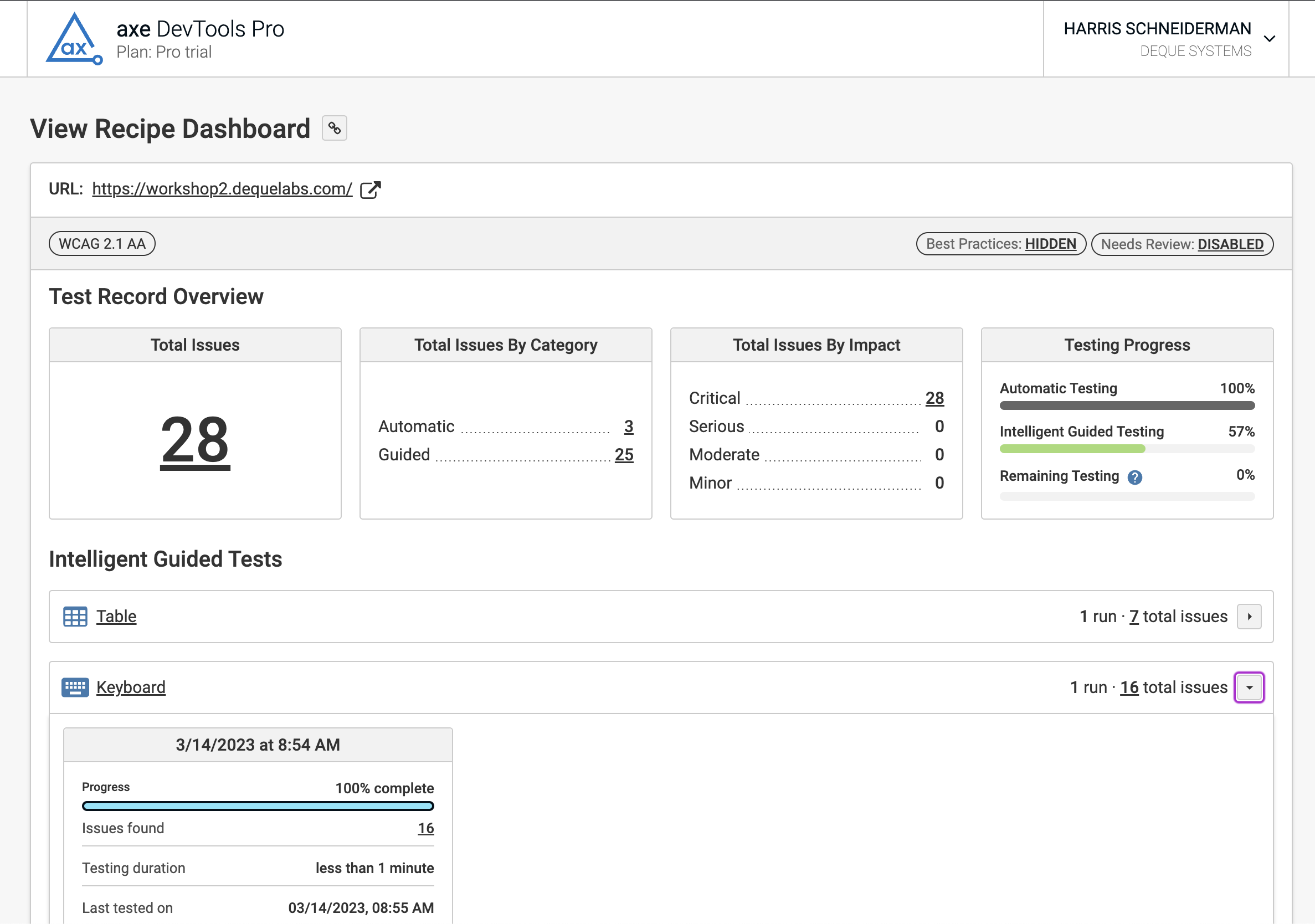
Page « Aperçu des tests enregistrés partagés »
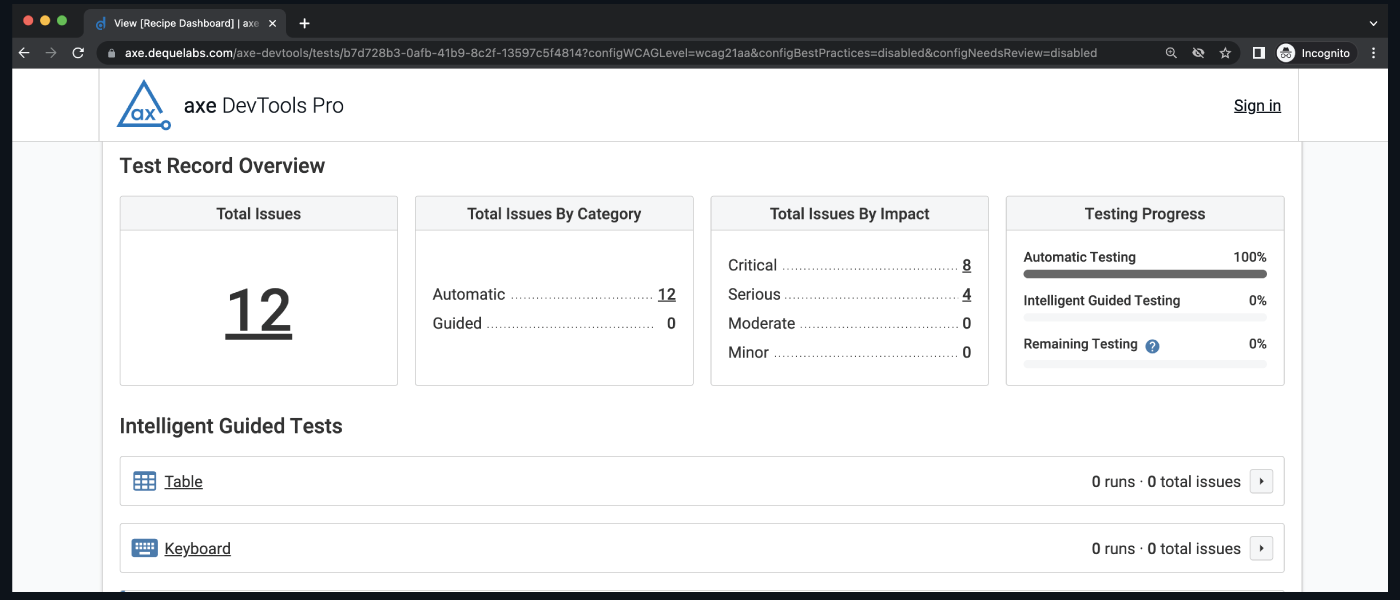
La page de synthèse « Partager le rapport de test » présente une ventilation de tous les tests effectués dans le cadre d’un test enregistré donné. Le rapport inclut le nombre total de problèmes d’accessibilité détectés, ainsi qu’une ventilation de ces problèmes par catégorie (automatique ou guidé) et par niveau d’impact (critique, grave, modéré et mineur). Il présente également l’état d’avancement global des tests automatiques, des IGT et des tests manuels restants. Enfin, les utilisateurs peuvent consulter chaque IGT ainsi que chacune de ses exécutions et les problèmes associés, accompagnés de métadonnées telles que la durée du test, le nom de la personne ayant effectué le test, le nombre de problèmes détectés, etc.
Partager la page « Problèmes liés aux enregistrements de test »
Le rapport « Tests enregistrés partagés » comprend une vue des problèmes pouvant être filtrée. Lorsqu'un utilisateur clique sur l'un des liens vers un problème dans l'aperçu des tests partagés, il est redirigé vers une page de problèmes sur laquelle des filtres sont appliqués en fonction du lien sur lequel il a cliqué. Les problèmes peuvent être filtrés selon les critères suivants :
- Catégorie
- Automatique
- Avec guide
- Impact
- Critique
- Sérieux
- Modéré
- Mineur
- À vérifier
- Bonnes pratiques
- IGT
- Tableau
- Clavier
- Boîte de dialogue modale
- Éléments interactifs
- Structure
- Images
- Formulaires
Les filtres appliqués sont ajoutés à l'URL. Ainsi, lorsque les utilisateurs cliquent sur le bouton « Copier le lien dans le presse-papiers », les filtres actuellement appliqués sont conservés, ce qui facilite le partage.
Conclusion
Que vous soyez un responsable chargé de suivre l'avancement des tests, un développeur partageant les résultats de tests avec votre équipe, ou encore un testeur joignant des rapports d'accessibilité à votre système de suivi des tickets, la nouvelle fonctionnalité « Partager le rapport de test » améliore les capacités de génération de rapports d'axe DevTools Pro. Nous espérons que cela rendra les tests d'accessibilité plus rapides et plus faciles pour vous et votre équipe. Cette fonctionnalité est encore en phase de test bêta, alors n'hésitez pas à nous faire part de vos commentaires!